Returned items from Sales Return Orders do not always remain in the Location to which they were initially posted. They are often moved from the Return Location to another Location, e.g. back to the main Location, so that the item can be resold.
With the "Transfer" function, this process can be triggered directly from the Sales Return Order.
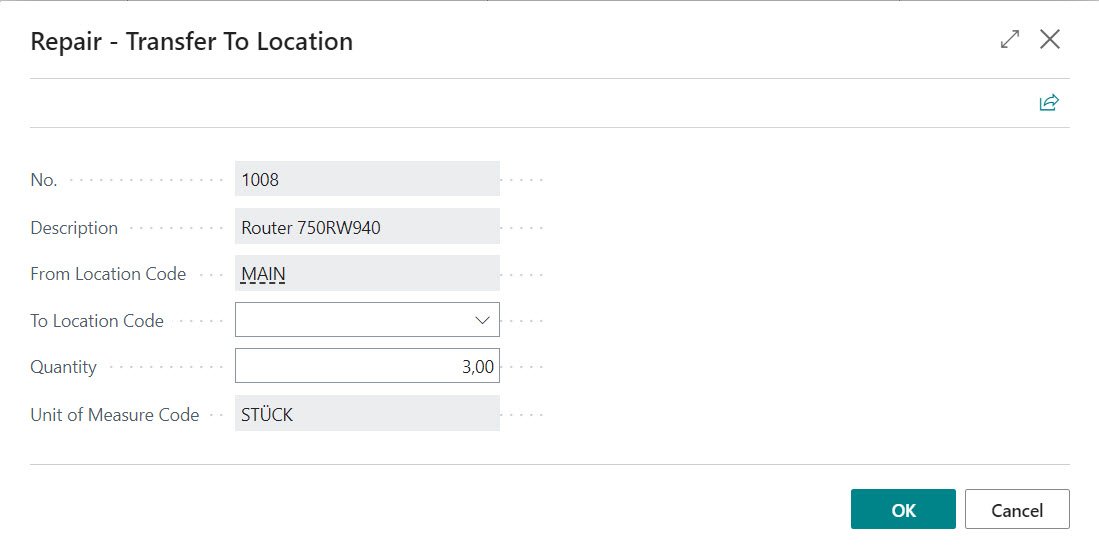
The window Repair - Transfer To Location opens when you call up the "Transfer" function, where the destination Location and quantity for transfer can be recorded.
After confirming with OK either the item journal opens or the item journal lines will be posted automatically. Template, journal name and the posting automation are set up in the App Setup.
Fields
No.
Specifies the Item No. to be transferred.
Description
Specifies the Description of the Item to be transferred.
From Location Code
Specifies the source Location Code to transfer from.
To Location Code
Here you have to enter the Location to which the article is to be transferred.
Quantity
Must be less than or equal to the quantity already returned.
Unit of Measure Code
Is preassigned with the unit from the Return Order Line.
Two journal lines are automatically created: a line with "Entry Type" = "Negative Adjmt." with the "From Location Code" and a line with "Entry Type" = "Positive Adjmt." with the "To Location Code". No real transfer journal line is generated because that would cause the Unit Cost to carry over to the new Location. If the return was made with a Unit Cost = 0, then the item would also have a Unit Cost = 0 in the new Location. In this way, you can control the valuation in the new Location yourself.
Note
The function cannot currently be used in conjunction with item tracking.


 Repair - Transfer To Location