2026/08/28 • 2 min. to read
You can review the consolidated VAT settlement before generating the file.
Select the function Show Amounts from XML file.
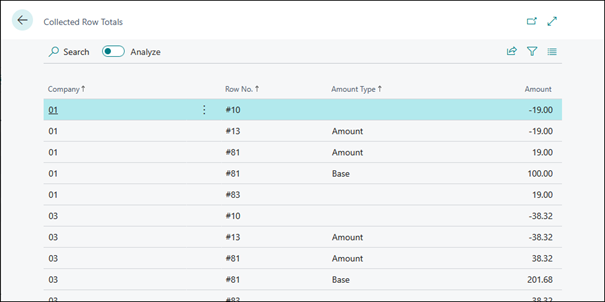
You will receive an overview of the category numbers, sorted by clients.
Tip
If you want to sort this overview by Row No., for example, simply click on this column in the heading.
The displayed values take into account VAT items from all clients according to the setup.
Please note the following points:
The status of VAT entries (open/closed) must be correctly set in all companies.
Each consolidated company must have the VAT Statement fully configured.
The VAT Statement setup in all companies must match that of the VAT group company.
Totals for each code are calculated separately in each company and then combined in the VAT group company.
You can start the consolidated file directly from the Sales VAT Adv. Notif. Card in the VAT group company.
Select the Create XML - Collected DE function:
In the XML File option, you can choose between:
Create
Create and Export
The generated file will include VAT entries from all companies based on the configuration.
Please note the following points:
The status of VAT entries (open/closed) must be correctly set in all companies.
Each consolidated company must have the VAT Statement fully configured.
The VAT Statement setup in all companies must match that of the VAT group company.
Totals for each code are calculated separately in each company and then combined in the VAT group company.
Calculate and Post VAT Settlement function cannot be executed across multiple companies.
The XML file created is stored in the download folder for further processing.


 Working with the App
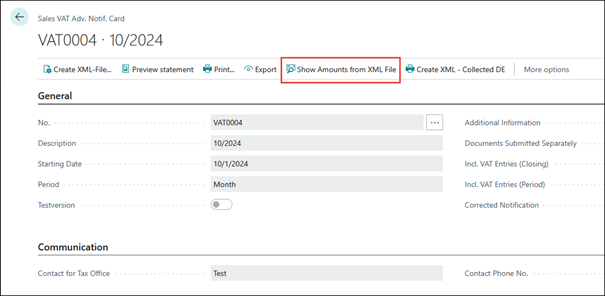 Select the function Show Amounts from XML file.
You will receive an overview of the category numbers, sorted by clients.
Select the function Show Amounts from XML file.
You will receive an overview of the category numbers, sorted by clients.

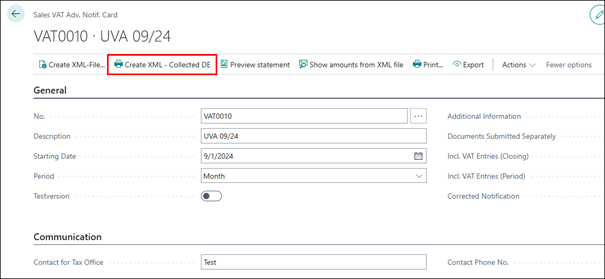 Select the Create XML - Collected DE function:
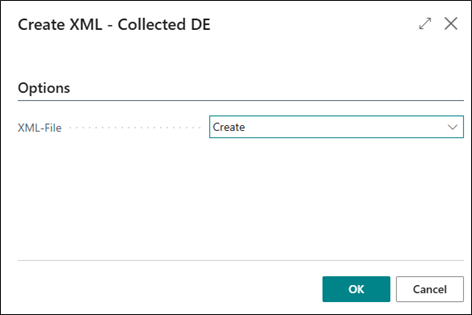 In the XML File option, you can choose between:


