
EDI Interface
Document exchange of electronic documents between BC and an EDI partner (clearing partner) - e.g. ORDERS, ORDERSP, DESADV, INVOICE.
Current Version:
- 1.0.3.0 as of Business Central 26
Manual
Creation date: 2026/10/14
The current version of this manual can be found at:


Docs / Solution / EDI Interface / General
 General
The EDI Interface app enables export and import of EDI XML files between Business Central and a connected endpoint.
Supported processes:
- Export: ORDERS, ORDRSP, DESADV, INVOIC
- Import: ORDERS, ORDRSP, DESADV
Note: INVOIC import is currently not fully implemented.
Docs / Solution / EDI Interface / Setup
EDI Interface Setup
The EDI interface is the central setup for export and import. It defines endpoints, authentication, and processing rules.
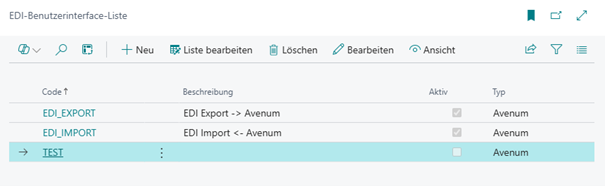
For EDI import and EDI export, separate records are created. The records differ in endpoint, processing direction, and mapping settings:

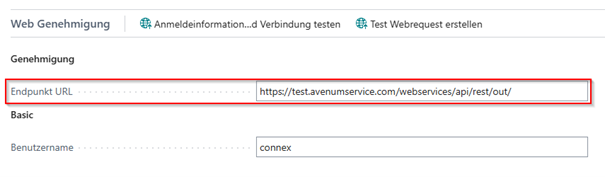
The endpoint specifies where EDI data is stored or retrieved.
In the Web Approval tab, enter the correct credentials for the web service (username + password). This function is provided by the "Web Utility Library" app.
The data exchange definition is specified in the EDI Mapping tab. It is used for processing by EDI type, especially for export and ORDERS import via data exchange definitions (see "Data Exchange Definition Setup"):

The EDI mapping is maintained by EDI type (for example ORDERS, ORDRSP, DESADV, INVOIC), direction, and document type.
For import, additional settings are used to control automatic transfer and follow-up processing:

Each field in the setup includes an individual tooltip to help understand its purpose.
For incoming EDI mappings, the action "Import File" is also available. This allows manual file import without waiting for the job queue. The action is available for all incoming EDI types.
GeneralFields
| Code | Specifies the code of the interface. |
| Description | Specifies the description. |
| Active | Specifies whether the interface is activated. |
| Type | Specifies the type of the interface. |
| Test Mode | Specifies whether files are processed only and not deleted from the endpoint. |
| Job Queue Codeunit | Specifies the codeunit that processes this EDI interface. |
Web ApprovalFields
| Endpoint URL | Specifies the endpoint URL where the data is stored or retrieved. |
| Type | Specifies the type of web service authentication. |
| Username | Specifies the username of the web service. |
| Password | Specifies the password of the web service. |
EDI MappingFields
| Code | Specifies the code of the EDI mapping. |
| Data Exchange Definition Code | Specifies the code of the data exchange definition. |
| Direction | Indicates whether the direction is outgoing or incoming. |
| Document Type | Specifies which document type is used. |
SettingsFields
| Quantity Tolerance (%) | Specifies the quantity tolerance used for imported data. |
| Price Tolerance (%) | Specifies the price tolerance used for imported data. |
| Date Tolerance (Days) | Specifies the date tolerance used for imported data. |
| Auto-apply Data | Specifies whether data should be automatically transferred during ORDRSP and DESADV import. |
| Auto-trigger Shipment | Specifies whether the order should be posted automatically during DESADV import. |
| Auto-post Invoice | Reserved for INVOIC import; INVOIC import is currently not fully implemented. |
| Discount Charge Type | Specifies the charge type used to map discount amounts in ORDRSP/INVOIC export. |
| Discount Charge Code | Specifies the charge code used to map discount amounts in ORDRSP/INVOIC export. |
Docs / Solution / EDI Interface / Setup
Job Queue Setup
To automate export and import of EDI documents, configure the required codeunits in the job queue:

Depending on the EDI types you use, the following codeunits are available:
- EDIExportOrdersNVX (ORDERS export)
- EDIExportORDRSPNVX (ORDRSP export)
- EDIExportDESADVNVX (DESADV export)
- EDIExportINVOICNVX (INVOIC export)
- EDIProcessEndpointDocumentsNVX (import from endpoint)
These codeunits process files via the configured EDI interface endpoints. Prerequisite: the corresponding EDI interface records must be active and fully configured.
Docs / Solution / EDI Interface / Setup
Data Exchange Definition Setup
The setup is used in the export process and allows you to define and modify the data of the XML file.
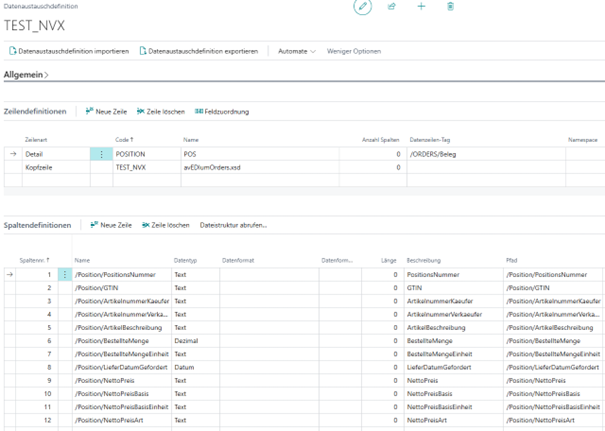
The objects are part of the Base Application and have been adapted and used accordingly.
The configuration can be exported and re-imported via the page action.
There are field mappings for both the header and the lines where the respective fields are configured:
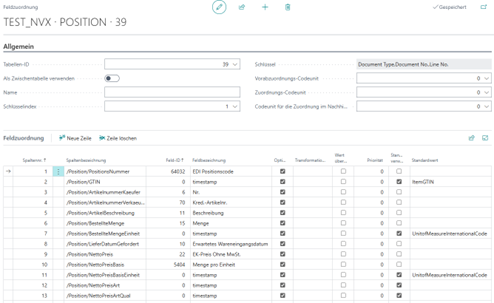
Once an export is executed in Business Central, the system uses this setup to create the XML file.
The data exchange definition here is based on the purchase header and purchase lines.
Currently, the data exchange definition is configured or specified via the EDI interface:

If a new data exchange definition is needed, it must be configured in the “Export” EDI interface.
In the code, the system filters by the stored code. If no data exchange definition is specified, nothing will happen.
Docs / Solution / EDI Interface / Setup
Vendor Setup
The setup is used in the export process. The vendor must be marked as an "EDI Vendor"; otherwise, no export will be performed for this vendor.

Docs / Solution / EDI Interface / Tasks
Working with the App
The process starts with the export of a purchase order.
Export ORDERS
If the "EDI Vendor" flag is enabled on the vendor, an EDI document is created when the purchase order is released.
The created EDI document contains the following purchase order information:
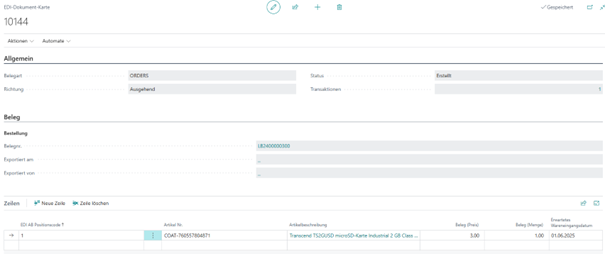
The document is created with the document type "ORDERS" and the status "Created". Additionally, the line information from the purchase order is added.
If the purchase order is reopened, the system checks whether an EDI document with the status "Created" exists. If so, it is deleted and recreated upon release. This ensures the EDI document is always up to date.
In the purchase order, two page actions exist to either create a new EDI document or open the existing one. These actions are only visible after releasing:
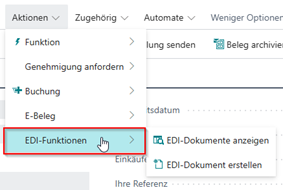
If an EDI document already exists and a new one is to be created, a message with a notice is displayed.
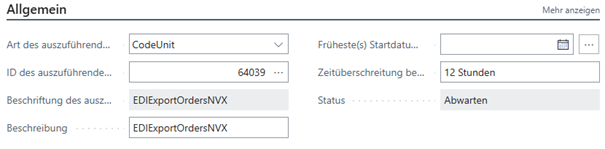
After creating an EDI document, the next step is to run a job queue. The codeunit "EDIExportOrdersNVX" must be configured and will export all created EDI documents in the process.
This export uses the EDI interface "EDI Export", providing a web service URL as an endpoint. An XML file is then sent to the configured URL.
After exporting an EDI document, the status is set to "Success". If a problem occurs, the status is set to "Error". Further details can be found in the transactions on the EDI card:

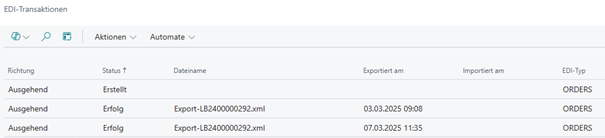
The exported XML file can be downloaded from the transactions and the EDI card:

Import ORDERS
For ORDERS import, inbound files are fetched from the endpoint and processed via job queue.
Prerequisites:
- An active EDI import interface using codeunit EDIProcessEndpointDocumentsNVX.
- An active EDI mapping for direction "Incoming" and EDI type "ORDERS".
- A valid data exchange definition configured in the mapping for ORDERS import.
The inbound XML file is imported into Data Exchange and processed by the configured mapping codeunit into intermediate and target data. This enables creation or update of sales orders from imported ORDERS data.
For testing, the interface can run in Test Mode so files are not deleted from the endpoint after processing.
Alternatively, the import can be started manually using the "Import File" action in the respective incoming EDI mapping.
Import ORDERSP
A separate EDI document is created for each export and import.
After a purchase order has been released and the created EDI document was successfully sent, the next step is importing an "ORDERSP". This document type is a purchase order confirmation.
A specific codeunit is used for the import of EDI documents, which must be set up in the job queues:
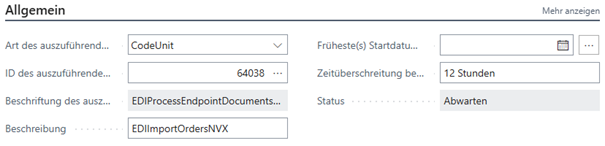
This codeunit checks all documents available at the endpoint URL defined in the "EDI Import" interface.
When an XML file is found in an import directory, it is processed and converted into an EDI document.
Further information is then available on the EDI card for the "ORDERSP":
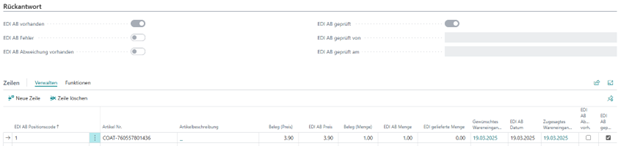
This allows deviations from the sent purchase order to be identified.
If a different quantity or price is confirmed, the flag "EDI Confirmation Deviation Present" is set.
Once all data has been reviewed or no deviation exists, there are two ways to transfer the data to the purchase order:
- The data is manually transferred into the purchase order:
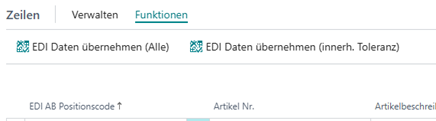
- The data is transferred automatically if enabled in the EDI interface setup:
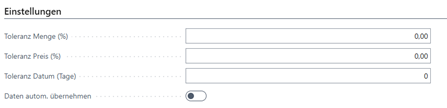
o A tolerance can also be configured here. If the imported data is within this tolerance, it is automatically accepted or offered for acceptance.
The data (quantity, price, date) is transferred to the associated EDI purchase order. Once the data has been transferred, the fields "EDI Confirmation Checked By" and "EDI Confirmation Checked On" are filled with the current user and date.
If positions in the imported document cannot be matched to purchase order lines, the import is stopped with an error.
Export ORDRSP
When a sales order is released, an outgoing ORDRSP EDI document can be created automatically.
Prerequisites:
- ORDRSP is enabled on the EDI recipient.
- An active EDI mapping exists for direction "Outgoing" and EDI type "ORDRSP".
- The data exchange definition for ORDRSP export is configured correctly.
In addition, users can trigger processing manually on the sales order using "Create EDI-Document" and "Show EDI-Documents".
For automated processing, use job queue codeunit EDIExportORDRSPNVX.
Import DESADV
Another document type is "DESADV", representing the delivery note.
The data in this file confirms the actual delivered or used information.
This allows Business Central to receive, for example, the vendor delivery number or tracking link.
For this import, an EDI document with the document type "DESADV" is created:
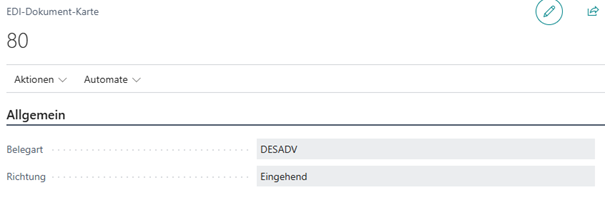
For imported documents, the direction is set to "Inbound".
When importing the DESADV, the sales order is filtered via the purchase order. The following data from the XML file is transferred into the sales order:
- Shipping Agent Code
- Package Tracking Number
Additionally, the field "EDI Delivered Quantity" from the XML file is transferred to the EDI document.
Now, the EDI interface setup is checked. If the field "Automatically Take Over Data" is enabled, the field "Quantity Outstanding" is filled with the delivered quantity from the XML file.
Furthermore, the vendor delivery number is transferred to the purchase order header.
As the last step in the DESADV process, the EDI interface setup is checked again.
If the field "Auto Post Shipment" is enabled:

The purchase order is posted automatically, and a sales shipment is created.
If positions in the imported document cannot be matched to purchase order lines, the import is stopped with an error.
Export DESADV
After posting a sales shipment, an outgoing DESADV EDI document can be created automatically.
Prerequisites:
- DESADV is enabled on the EDI recipient.
- An active EDI mapping exists for direction "Outgoing" and EDI type "DESADV".
- The data exchange definition for DESADV export is configured correctly.
Additionally, users can work manually from the posted sales shipment using the actions "Create EDI-Document" and "Show EDI-Documents".
For automated processing, use the job queue codeunit EDIExportDESADVNVX.
Export INVOIC
After posting a sales invoice, an outgoing INVOIC EDI document can be created automatically.
Prerequisites:
- INVOIC is enabled on the EDI recipient.
- An active EDI mapping exists for direction "Outgoing" and EDI type "INVOIC".
- The data exchange definition for INVOIC export is configured correctly.
Additionally, users can work manually from the posted sales invoice using the actions "Create EDI-Document" and "Show EDI-Documents".
For automated processing, use the job queue codeunit EDIExportINVOICNVX.
Import INVOIC
INVOIC import is currently not fully implemented.
Docs / Solution / EDI Interface / Appendix
Release Notes
Would you like to know what has changed in the extension?
Below you'll find an overview of the new features and changes made in the updates.
EDI 1.0.2.1
- Online Help updated to reflect the current app version 1.0.2.1.
- Documented manual file import via the "Import File" action for all incoming EDI mappings.
- Extended ORDERS import flow documentation (job queue and manual import path).
- Documented validation for ORDERSP and DESADV import: missing purchase line matching stops processing with an error.
EDI 1.0.0.1
- Online Help updated and aligned with the current feature scope.
- Added missing Help sections for ORDERS import, ORDRSP export, and DESADV export.
- Job queue codeunit documentation extended for all supported export processes (ORDERS, ORDRSP, DESADV, INVOIC).
- EDI interface setup documentation expanded with Test Mode and mapping/discount field behavior.
- Process description for INVOIC export from posted sales invoices added.
- Clarified note that INVOIC import is still not fully implemented.
EDI 1.0.0.0

