| Docs Help
  AppSource  
  The topic is not available for the selected language ().
Docs  /  App  /  NAVAX Payment  /  Setup  /  Exports

 XML Schemas


2026/07/22 • 15 min. to read

In this topic

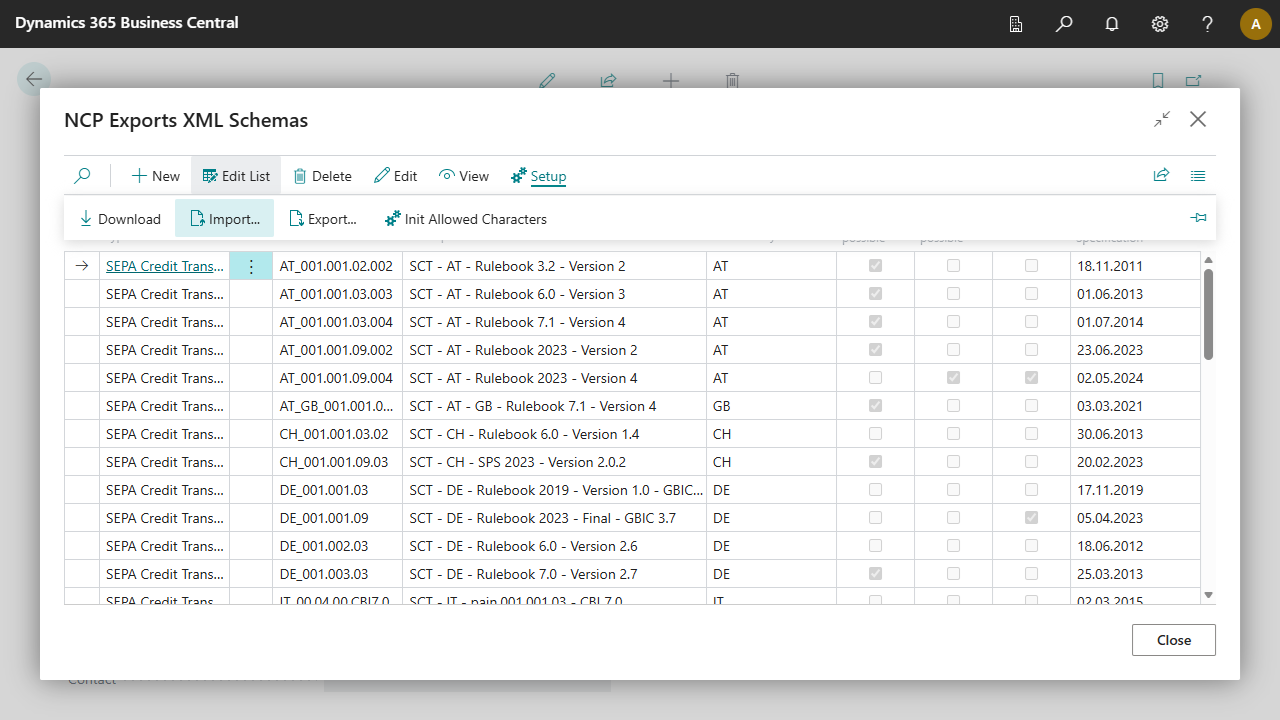
XML format is the established standard for payment transactions across Europe. On this page, you manage XML schemas for exporting payment files in Business Central. This help covers three key pages:
  • XML Schemas (overview with download, import, export)
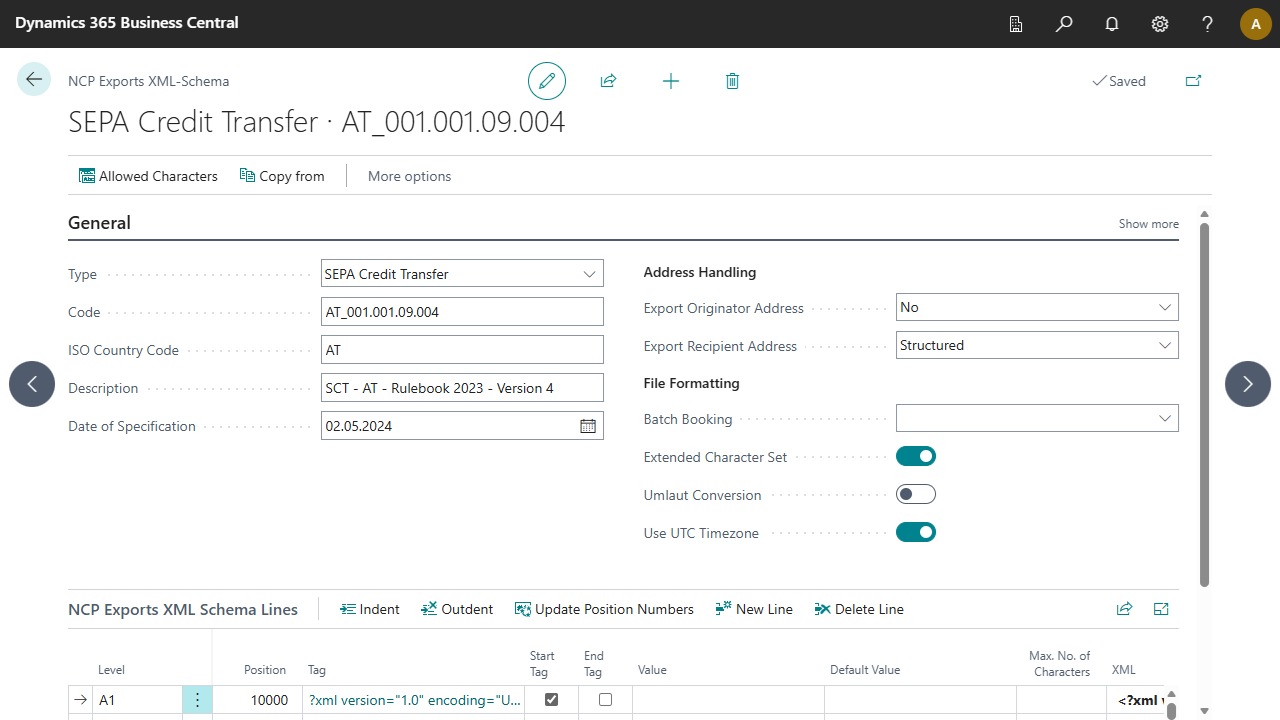
  • XML Schema Card (settings for a single schema)
  • XML Schema Lines (technical XML structure)

Accessing XML Schemas


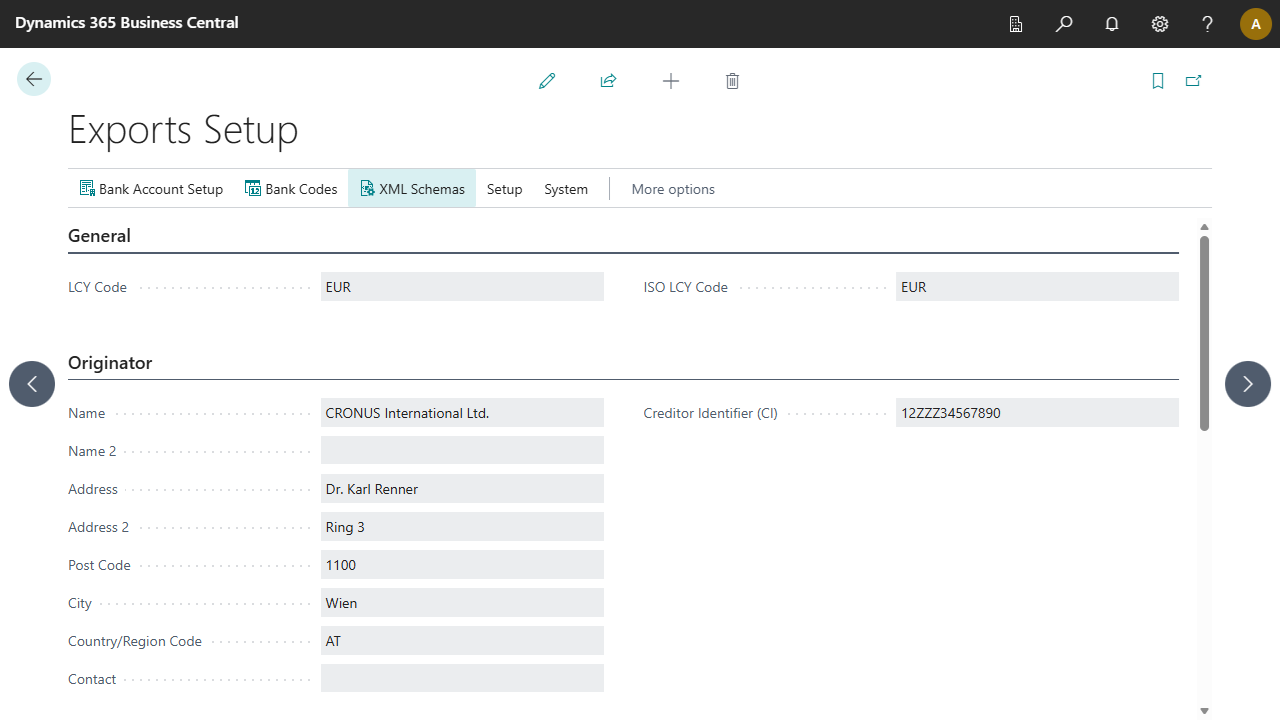
Management is handled through the NCP Exports Setup page using the XML Schemas action. You can access this page via Tell me what you want to do or from the Business Central home page through the menu: NCP Payment, Administration, NCP Exports Setup.

How to Work with This Setup

  1. Keep standard schemas current by using Download or Import.
  2. For customer-specific requirements, create a copy of a standard schema using Copy from on the XML Schema Card.
  3. First, adjust settings on the XML Schema Card.
  4. Edit XML Schema Lines only when pure setting changes are insufficient.

Downloading SEPA XML Schemas

  1. Open the XML Schema Overview as described in Accessing XML Schemas.
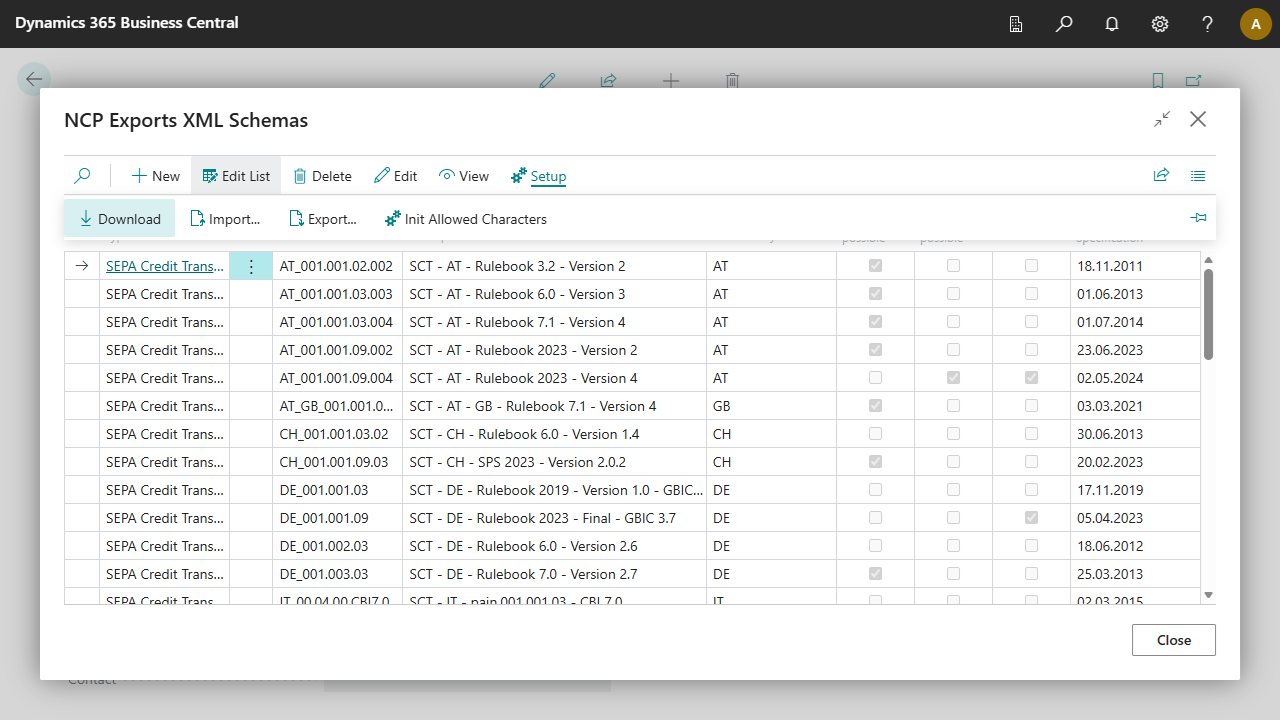
  2. On the NCP Exports Setup page, select the action Setup, XML Schemas to open the overview of available XML schemas in Dynamics 365 Business Central.
  3. Click the Download action to download the provided SEPA XML schemas.

    Note

    If you don't yet have permission to establish an online connection through NAVAX Payment, you will be prompted to grant it. An internet connection is required for the download.

    Important

    If an error occurs during download, please verify the required settings. For more information, see Appendix, Installation Notes..
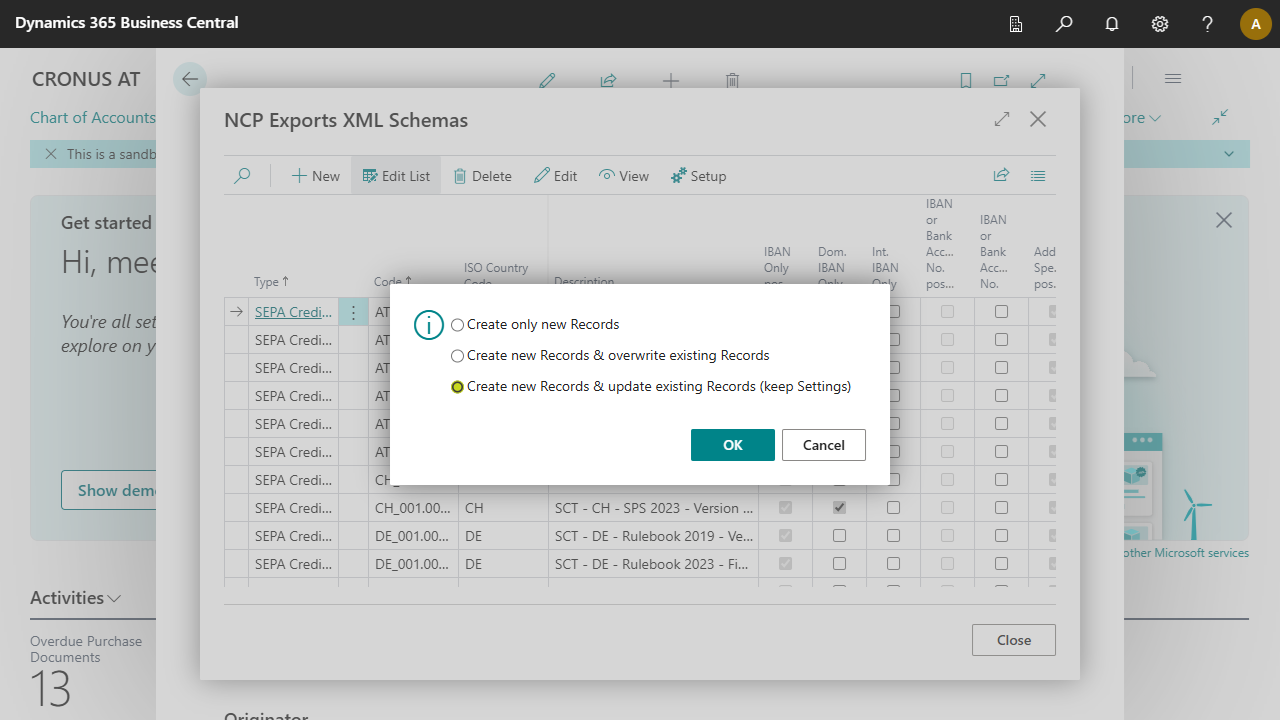
  4. The system downloads the SEPA XML schemas automatically from the official source and stores them in Dynamics 365 Business Central. If XML schemas already exist, you will be prompted to decide how to proceed.
    • Create Schemas if they do not exist Only schemas not yet in the database are downloaded. Existing schemas are not overwritten.
    • Create Schemas & overwrite existing Schemas All downloaded schemas are created in the database. Existing schemas are overwritten with standard values. Custom adjustments are lost.
    • Create Schemas & update existing Schemas (keep settings) All downloaded schemas are created in the database. Existing schemas are updated, and custom adjustments are preserved. Only fields that were changed in the downloaded schema are updated.

    Note

    If you have questions or problems with the download or SEPA schemas (for example, if the processing software rejects them), please contact your payments specialist. Please provide detailed information so we can assist you effectively. If the bank rejects the schema, the exact error message is needed for analysis.
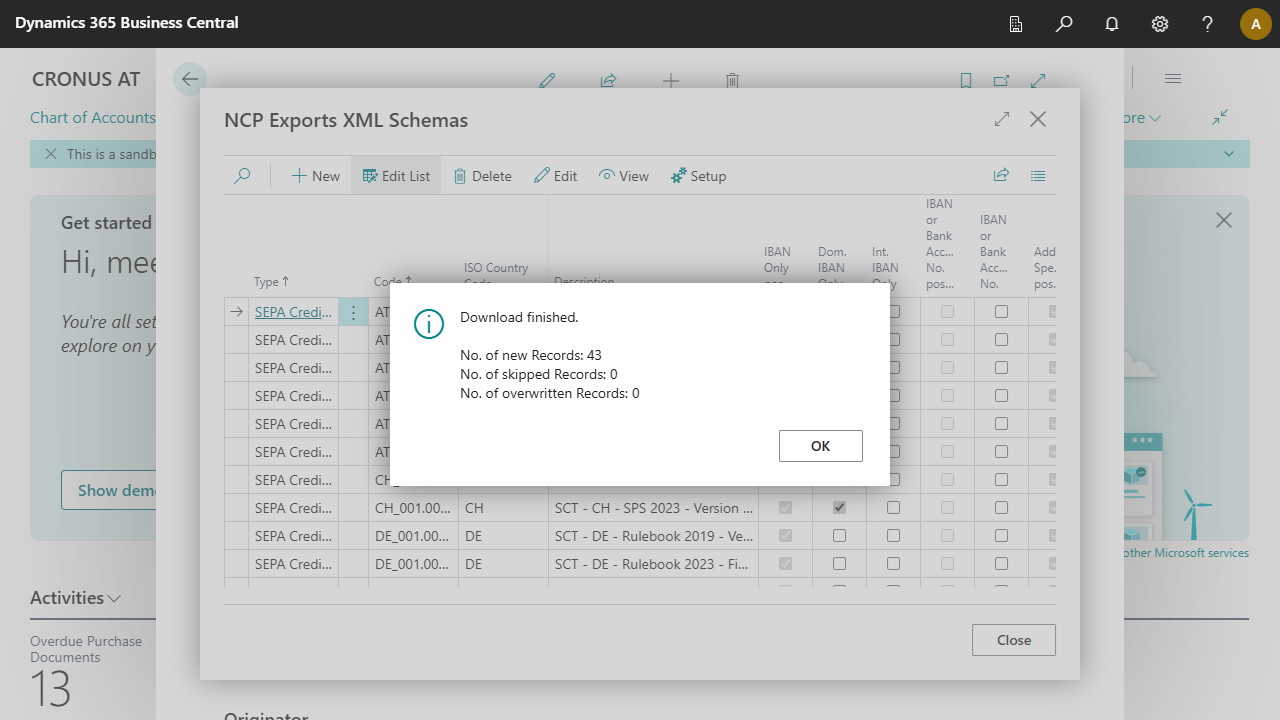
  5. After successful download, a dialog appears showing an overview of the downloaded schemas.
The download is now complete and the schemas are ready for use.

Importing SEPA XML Schemas

  1. Open the XML Schema Overview as described in Accessing XML Schemas.
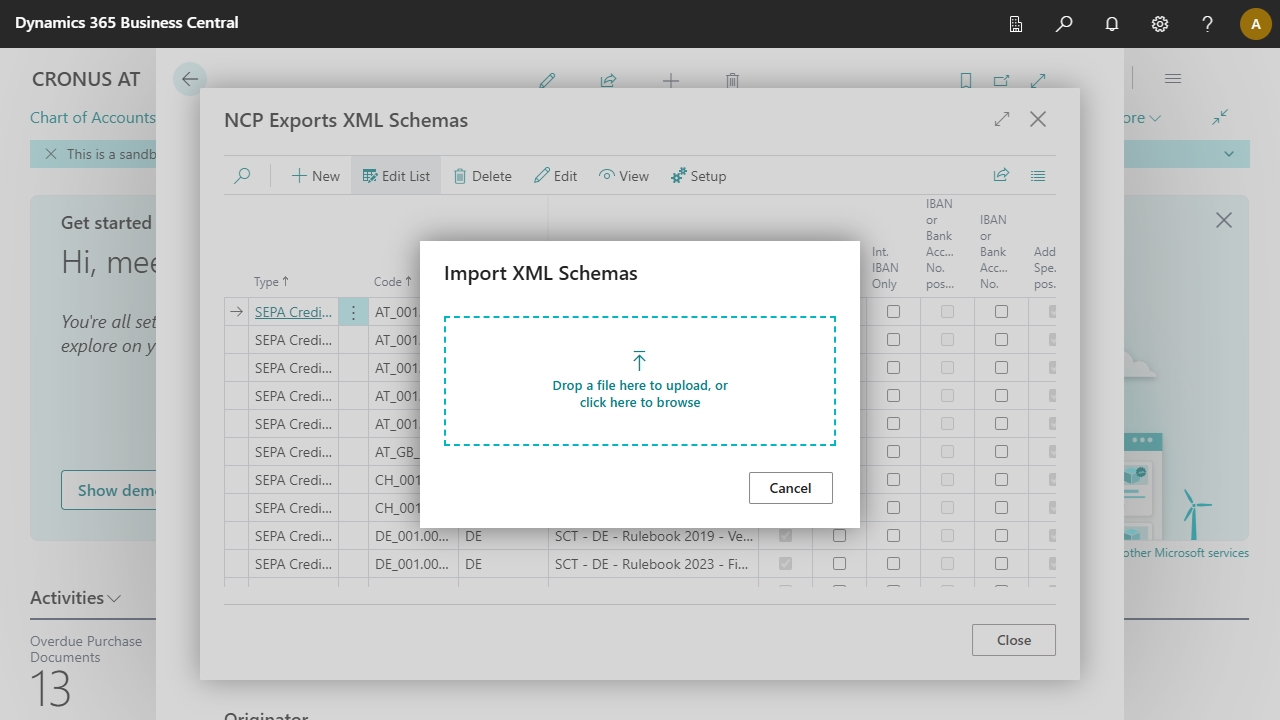
  2. Select the Import action.
  3. Select the local XML file you want to import. You can drag and drop a file into the Import XML Schemas dialog or click Click here to browse or drag files here to upload to select a file from your computer.
  4. The system verifies the file and imports the schema into the database.
  5. If XML schemas already exist, you will be prompted to decide how to proceed.
    • Create Schemas if they do not exist Only schemas not yet in the database are downloaded. Existing schemas are not overwritten.
    • Create Schemas & overwrite existing Schemas All downloaded schemas are created in the database. Existing schemas are overwritten with standard values. Custom adjustments are lost.
    • Create Schemas & update existing Schemas (keep settings) All downloaded schemas are created in the database. Existing schemas are updated, and custom adjustments are preserved. Only fields that were changed in the downloaded schema are updated.

Tip

Importing previously exported XML schemas allows you to easily transfer already-configured schemas to other Dynamics 365 Business Central environments. This is especially useful if you have made custom adjustments to schemas to meet your bank's specific requirements. It can also be helpful during upgrades, saving you time and preventing errors since you don't need to reconfigure schemas manually. See the Exporting XML Schemas section above to learn how to create a backup.

Exporting XML Schemas

  1. Open the XML Schema Overview as described in Accessing XML Schemas.
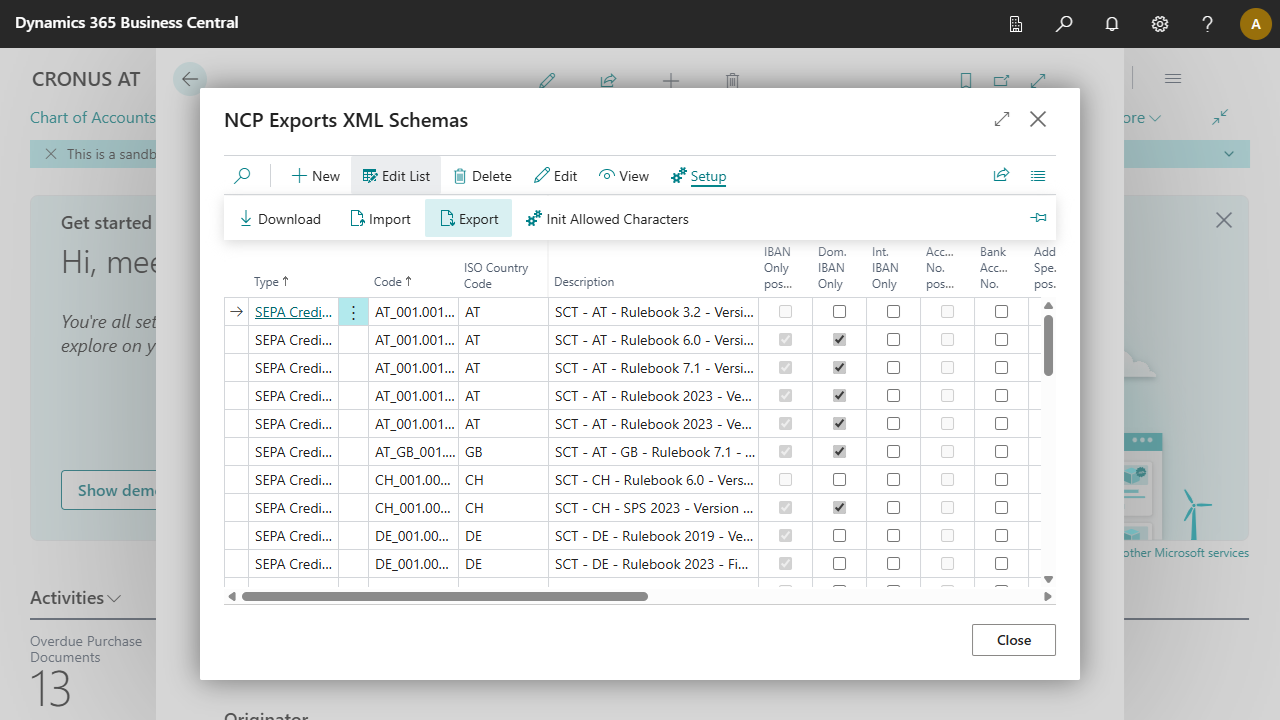
  2. Select Export.
  3. The system creates the file NCPE_XMLSchemas.xml and automatically downloads it to the Download folder on your client.

    Note

    The download folder depends on your operating system and browser. Check your browser settings to find the location.

Notes

  • Keep schemas current, especially when regulatory changes occur.
  • If banks reject files, document the exact error message for analysis.
  • For NON-SEPA transfers, complete recipient data is especially important.

Important: NON-SEPA Transfers

Increasing regulations to prevent money laundering, terrorist financing, embargo violations, etc., typically require providing the complete recipient name and associated address. The recipient's financial institution, which may be subject to additional country-specific regulations, may refuse to accept transfers with insufficient information or may be obligated to return them. While the minimum requirements of payment systems are low (country code and city), providing complete information is strongly recommended.

XML Schema Card: How to Read the Fields Correctly

The card separates business logic into:
  • Use/Allow/Export: your active setting for export.
  • Supported: the schema can technically process a feature (read-only information displayed via Show More).

Important

If a feature is not supported, the corresponding setting must not be used.

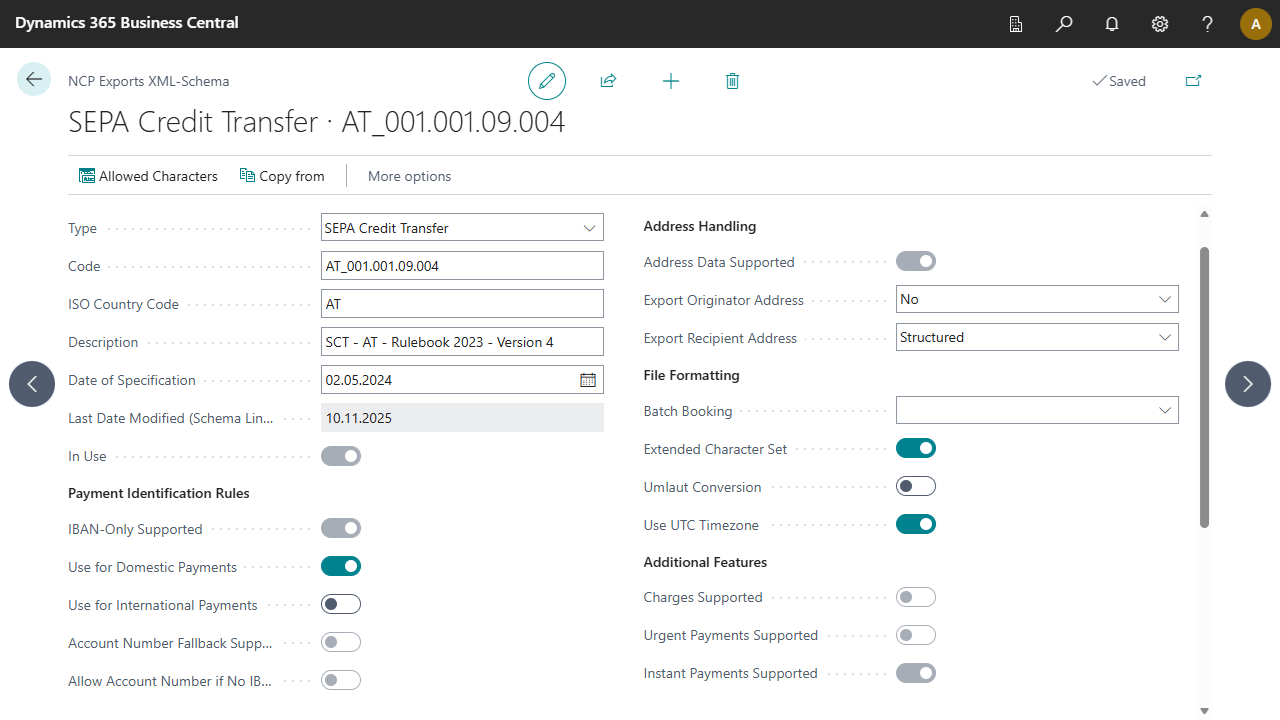
XML Schema Card Show Less
XML Schema Card Show More

Common Tasks on the XML Schema Card

  1. Set Up Structured Recipient Address
    • Verify Address Data Supported.
    • Set Export Recipient Address As to Structured.
    • Maintain recipient master data completely (name, address, city, country/region).
  2. Use IBAN-Only
    • Verify IBAN-Only Supported.
    • Enable Use for Domestic Payments and/or Use for International Payments only when required by your bank.
  3. Allow Account Number as Fallback
    • Verify Account Number as Fallback Supported.
    • Enable fallback only for required legacy scenarios.

Note

Options such as Unstructured - Multi-Line or Unstructured - Single Line for addresses are retained for existing legacy schemas. For current SEPA requirements, Structured is typically preferred.

XML Schema Card, General, Fields

Type, code, country, description, and date fields for schema identification.
Type Specifies the schema type. Possible values: SEPA Credit Transfer, SEPA Direct Debit, and Non-SEPA Credit Transfer
Code Specifies the schema code. This code corresponds to the SEPA standard for the schema. For more information, see Payment Transactions
ISO Country Code Specifies which countries the schema is valid for. Some countries have different ISO standard requirements.
Description The Description field is composed of an abbreviation of the Type, the ISO country code, and the Rulebook version of the schema. This applies only to downloaded schemas. For manually created schemas, you define the Description.
Specification Date Shows the date of the specification.
Last Modified (Schema Lines) Shows when the schema lines were last changed.
In Use Indicates whether the schema is in use.

XML Schema Card, Payment Identification, Fields

Support and activation for IBAN-only and account number fallback.
IBAN-Only Supported Read-only. Indicates whether this schema technically supports payments without BIC or SWIFT code.
Use for Domestic Payments Enable this setting to allow domestic payments to be exported without BIC or SWIFT code.
Use for Foreign Payments Enable this setting to allow foreign payments to be exported without BIC or SWIFT code.
Account Number Fallback Supported Read-only. Indicates whether this schema supports account numbers when no IBAN is available.
Allow Account Number if No IBAN Enable this setting to allow export of the recipient's account number if no IBAN is available.

XML Schema Card, Address Handling, Fields

Support and export format for originator and recipient addresses.
Address Data Supported Read-only. Indicates whether this schema technically contains fields for address data.
Export Originator Address Specifies whether and in what format the originator address from the setup is written to the payment file. For more information, see the Notes, Important: NON-SEPA Transfers, and Common Tasks on the XML Schema Card sections.
Export Recipient Address Specifies whether and in what format recipient address data is written to the payment file. For current SEPA requirements, prefer Yes - Structured when available. For more information, see the Notes, Important: NON-SEPA Transfers, and Common Tasks on the XML Schema Card sections.

XML Schema Card, File Formatting, Fields

Batch booking, character set, umlaut conversion, and UTC output.
Batch Booking The Batch Booking field determines how transactions are booked on the bank side. By default, this field is empty and the flag () is not written to the payment file. If you specify Yes or No, the indicator is set in the payment file to indicate whether it is a batch booking (Yes) or a single booking (No).

Note

Only if you have a specific agreement with the bank for single bookings will No result in each transaction being displayed individually on the originator's account statement. Otherwise, or by default, it is always a batch booking (default/pre-agreed: Yes).
Extended Character Set Specifies whether the extended character set should be activated. Generally, the following characters are allowed: abcdefghijklmnopqrstuvwxyz ABCDEFGHIJKLMNOPQRSTUVWXYZ 0123456789 /-?:()., "space". Previously, for Austrian bank accounts, these additional characters were allowed: &; Additionally, the following characters were automatically converted: < to "&lgt;" > to "&gt;" & to "&amp;" " to "&quot;" ' to "&apos;" If this field is set, the above conversion is performed in this schema. If the Extended Character Set field is not set, the character & is automatically converted to +, and all other characters are replaced with a space. Use the Allowed Characters action to configure the character set. For more information, see SEPA Requirements for an Extended Character Set (UNICODE Subset) - Best Practices (English)
Umlaut Conversion Specifies whether umlaut conversion should be used when creating a payment file. Some financial institutions do not allow the use of umlauts. The conversion transforms:
  • Ä or ä to Ae or ae
  • Ü or ü to Ue or ue
  • Ö or ö to Oe or oe
Use UTC Time Zone Specifies that the timestamp format should be formatted in UTC time zone. This means timestamps in the payment file will always be in Coordinated Universal Time (UTC), regardless of your system or bank's time zone. This is especially important for international transactions to avoid misunderstandings or errors due to time zone differences. When enabled, the time is automatically converted to UTC and formatted accordingly before being written to the XML file.

Note

The setting causes timestamps in the XML schema to be output in UTC format. 2026-09-30T14:48:00Z is an example of a UTC format timestamp, where "Z" indicates Coordinated Universal Time (UTC). 2026-09-30T14:48:00+02:00 is an example of a timestamp with time zone offset, where "+02:00" indicates the time deviates 2 hours from Coordinated Universal Time (UTC), in this case UTC+2.

XML Schema Card, Additional Features, Fields

Read-only support for charges, urgent payments, and instant payments.
Charges Supported Read-only. Indicates whether this schema supports charge information.
Urgent Payment Supported Read-only. Indicates whether this schema supports processing urgent payments. For more information, see Tasks, Exports, Fast Payments: Urgent & Instant Transfer.
Instant Payment Supported Read-only. Indicates whether this schema supports SEPA instant payments. For more information, see Tasks, Exports, Fast Payments: Urgent & Instant Transfer.

XML Schema Lines: When and How to Edit

Lines define the technical XML structure. Edit lines only when card settings are not sufficient.

Typical Tasks

  1. Insert new line, then run Update Position Numbers.
  2. Indent/Outdent to fix XML hierarchy.
  3. Adjust values/attributes/conditions when nodes must be output conditionally.

XML Schema Lines, Fields

Level Specifies the level. Levels represent parent XML nodes (for example: GrpHdr, PmtInf..). Position numbers are assigned per child XML node within each level. Available options:
  • A1
  • B1
  • C
  • B2
  • A2
Position Specifies the position of the line in the schema. Use the Update Position Numbers action to re-sort position numbers per Level. This is required after inserting a new line.
Indentation Specifies the indentation level, which hierarchically arranges child XML nodes. This field is not visible on the page; use the Indent or Outdent actions to indent or outdent XML nodes.
Tag Specifies the tag name or node name for the XML node.

Tip

Click in this field to open a text editor that makes editing easier, especially for longer tags.
Start Tag Indicates that the node should have a start tag. Use this field to specify that it is an XML node that should contain a start tag. If you enable this field but not the End Tag field, a parent node is created (for example: ). If both fields are enabled, a child node is created, closing in the same line (for example: Value).
End Tag Indicates that the node should have an end tag. Use this field to specify that it is an XML node that should contain an end tag. If you enable this field but not the Start Tag field, a parent node is created (for example: ). If both fields are enabled, a child node is created, closing in the same line (for example: Value).
Value Specifies the value used as Inner Text in this XML node. The AssistEdit function opens the NCP Exports XML Schema Values page, which provides standard values to choose from, but you can also enter a custom value in the field. For more information, see Setup, XML Schema Values.
Default Value Specifies the default value, which is a constant. For example, in a SEPA domestic credit transfer in Austria, the node always contains the value TRF. For more information, see Setup, XML Schema Values.
Max. No. of Characters Specifies the maximum number of characters allowed for the XML node's value.
XML Shows the XML of the tag. This column helps you understand the structure of the XML file.
Attribute Indicates that the XML node contains an attribute. Enter the attribute name and value in quotes.
Skip Indicates that the XML node should be skipped if a condition is met. The values Yes, If - OR, and If - AND are available. The fields Skip - If Empty and Skip - If Not Empty define the condition values.
Skip - If Blank Specifies the value used for the skip condition. If the set value for the XML node is empty, the node is skipped.
Skip - If Not Blank Specifies the value used for the skip condition. If the set value for the XML node is not empty, the node is skipped.

Setup, Actions

  • Download

    Starts the download of predefined XML Schemas needed for NAVAX Payment Transactions Exports. These XML schemas are kept current and made available. For a detailed description, see Downloading SEPA XML Schemas above.
  • Import

    Starts the import of existing XML schemas from an XML file. These could be schemas from older systems that you have already configured and exported. For a detailed description, see Importing SEPA XML Schemas above.
  • Export

    Exports all XML schemas from your database. This exported file can be used for import into other databases. For a detailed description, see Exporting XML Schemas above.
  • Init Allowed Characters

    Resets the allowed character set for all XML schemas to the default value. This overwrites all custom adjustments and applies the standard character set to all schemas.

XML Schema Card, Actions

  • Allowed Characters

    Use this action to configure the allowed characters valid for use in the payment file. This is necessary when your bank allows a different character set than the SEPA schema standard.
  • Copy From

    It may happen that your bank has specific requirements requiring a schema adjustment. Select one of the schemas that approximately matches this requirement. Create a new schema, and in the card that opens, first fill in the Code field, then use the Copy from action to insert the existing schema into the new one. After copying is complete, you can make your adjustments in the Lines.
  • Reset Allowed Characters

    Resets the allowed characters for use in the payment file to the default value. The default value includes the following characters: abcdefghijklmnopqrstuvwxyzäüößABCDEFGHIJKLMNOPQRSTUVWXYZÄÜÖ0123456789/-?:().

XML Schema Lines, Actions

  • Indent

    Use this action to indent lines.
  • Outdent

    Use this action to outdent lines.
  • Update Position Numbers

    Use this action to update position numbers. This is required after inserting new line(s).
  • New Line

    Use this action to add a new line to the schema. The new line is inserted above the selected line in the list. The position can be adjusted afterward using the Update Position Numbers action.
  • Delete Line

    Use this action to delete a line from the schema. The line is removed from the list, and the positions of other lines are automatically adjusted.

Related information


Submit feedback for
DE|EN Imprint